
A PrestaShop One Page Checkout module combines all checkout steps, cart, address, shipping, and payment onto a single page. To install it, download the module from the PrestaShop Addons Marketplace or a trusted provider, upload it via the Module Manager, configure its settings, and activate it on your storefront. This eliminates unnecessary redirects and significantly reduces cart abandonment.
Why Use a One-Page Checkout in PrestaShop?
Standard multi-step checkouts force customers through several separate pages before completing a purchase. Each additional step increases the likelihood of abandonment. A PrestaShop one-page checkout solves this by presenting all required fields on a single, streamlined screen.
The benefits of using a one-step checkout PrestaShop extension include:
- Faster purchase completion for customers
- Lower cart abandonment rates
- Improved mobile experience with a responsive one-page checkout PrestaShop layout
- Higher conversion rates across all device types
- Guest checkout support without mandatory account creation
Therefore, installing a PrestaShop simplified checkout addon is one of the most impactful optimisations for any e-commerce store.
Step-by-Step: Install the PrestaShop One Page Checkout Module
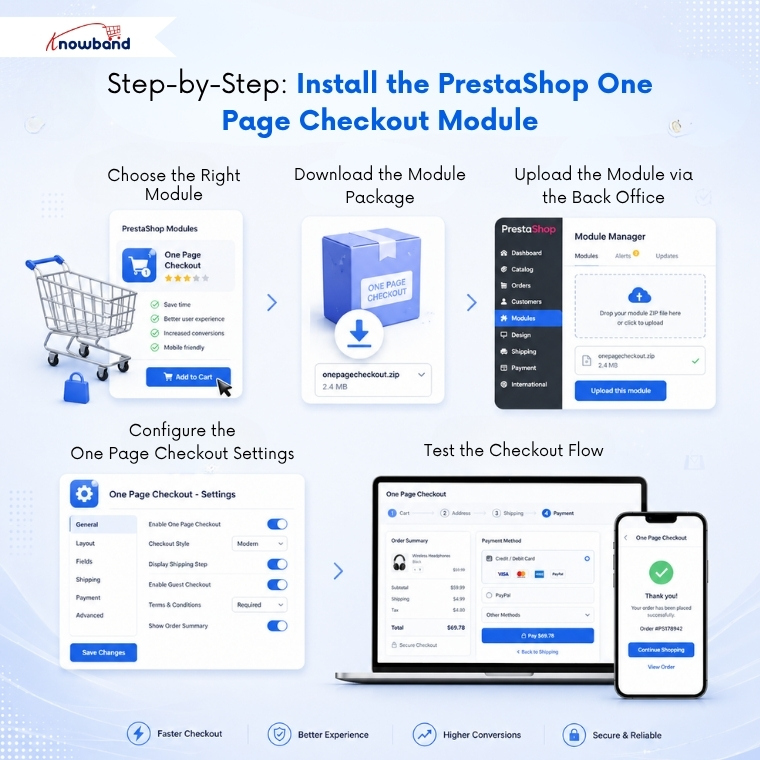
Step 1: Choose the Right Module
Before installation, select a reliable PrestaShop One Page Checkout Addon. Look for modules that offer the following features:
- Full responsiveness across mobile, tablet, and desktop
- Compatibility with your PrestaShop version
- AJAX-based real-time field updates
- Multiple payment gateway support
For example, the PrestaShop One Page Supercheckout by Knowband is a popular choice that supports all major payment providers and includes a built-in order summary widget.
Step 2: Download the Module Package
Visit the PrestaShop Addons Marketplace or the developer’s official website. Purchase or download the quick checkout extension for PrestaShop. You will receive a .zip file containing the module package. Save it to a local folder on your computer.
Step 3: Upload the Module via the Back Office
Follow these steps to upload the module:
- Log in to your PrestaShop back office panel.
- Navigate to Modules > Module Manager.
- Click the Upload a Module button at the top right.
- Select the downloaded .zip file and click Open.
- Wait for the system to validate and install the module.
- Click Install when prompted.
Once installed, PrestaShop confirms the activation with a success message.
Step 4: Configure the One Page Checkout Settings
After installation, configure the module to match your store’s requirements. Access the configuration panel by clicking Configure next to the installed module. Key settings to adjust include:
- Enable or disable guest checkout
- Set the layout: one column, two columns, or tabbed
- Select which fields are mandatory or optional
- Enable the responsive one-page checkout PrestaShop layout for mobile users
- Activate auto-fill for returning customers
- Configure the order summary and coupon code display
Moreover, most PrestaShop fast checkout addon modules allow you to add a custom CSS class or branding colours to match your store’s theme.
Step 5: Test the Checkout Flow
Before going live, test the PrestaShop quick checkout thoroughly. Add a product to the cart and proceed to the checkout page. Verify that all fields load correctly, payments process successfully, and the page renders properly on mobile devices. Use your store’s test payment credentials to simulate transactions without processing real charges.
Key Features to Look for in a PrestaShop One-Click Checkout Addon
Not all quick checkout addon PrestaShop solutions offer the same capabilities. However, the following features are essential for an effective one-page checkout experience:
- AJAX order placement without page reload
- Address auto-complete integration (Google Maps API)
- Social login options for faster account creation
- Multi-language and multi-currency support
- PrestaShop responsive one-step checkout addon compatibility with all themes
- Built-in analytics to track checkout abandonment points
For example, a store selling internationally must use a module that handles both address formats and currency conversions natively within the checkout form.
Common Configuration Issues and How to Fix Them
Occasionally, store owners encounter issues after installing a one-step checkout PrestaShop extension. Below are the most common problems and their resolutions:
- The checkout page displays blank: Clear the PrestaShop cache via Advanced Parameters > Performance.
- Payment gateway not loading: Verify that the payment module hooks are correctly registered.
- Mobile layout misalignment: Confirm the responsive one-page checkout PrestaShop mode is enabled in settings.
- Module conflict: Temporarily disable other checkout-related modules and test again.
Frequently Asked Questions (FAQ)
1. What is a PrestaShop One Page Supercheckout?
A PrestaShop One Page Supercheckout is a module that merges all checkout steps, billing, shipping, and payment into a single page. It eliminates multiple page redirects and enables customers to complete purchases faster, directly reducing cart abandonment rates.
2. Is the one-step checkout PrestaShop extension mobile-friendly?
Yes, most modern PrestaShop responsive one-step checkout addons include a fully responsive design. They automatically adjust the layout based on screen size, ensuring a smooth experience for users on smartphones and tablets.
3. Can I use a PrestaShop quick checkout module with guest accounts?
Yes. Most PrestaShop quick checkout modules support guest checkout. You can configure this option directly in the module’s settings panel, allowing customers to purchase without creating an account.
4. Will a PrestaShop fast checkout addon affect my existing payment methods?
A well-built PrestaShop fast checkout addon supports all natively installed payment gateways. However, ensure you test each payment method after configuration to confirm compatibility. Some older payment modules may require hook re-registration.
5. How do I choose the best quick checkout extension for PrestaShop?
Choose a quick checkout extension for PrestaShop based on your PrestaShop version compatibility, supported payment methods, mobile responsiveness, available layout options, and customer support quality. Always verify ratings and reviews on the PrestaShop Addons Marketplace before purchasing.
6. Does a PrestaShop simplified checkout addon require coding knowledge?
No. Most PrestaShop simplified checkout addon solutions provide a user-friendly configuration panel within the back office. You do not need PHP or JavaScript knowledge to install or configure them. Advanced customisation may require developer assistance, however.
Recommended Solution
Installing and configuring a Knowband PrestaShop one-page checkout module is a straightforward process that delivers measurable results. By consolidating the checkout experience onto a single page, you reduce friction, improve mobile usability, and increase completed orders. If you choose the Knowband Prestashop One Page Checkout Addon, follow the configuration steps carefully, test all payment methods, and enable mobile responsiveness before launching. A properly configured quick checkout addon PrestaShop setup directly translates into better customer satisfaction and higher revenue for your store.

